Spartan is a free dark purple color scheme for Sublime Text. The background is a deep purple-black, #0d0717, and the syntax colors are the vivid pink, green, yellow and cyan that Monokai made familiar. It also includes a light variant. Among Sublime Text themes and color schemes, it sits at the high-contrast end: every token is easy to tell apart at a glance.
You install it from Package Control in under a minute. It works in Sublime Text 3 and 4.
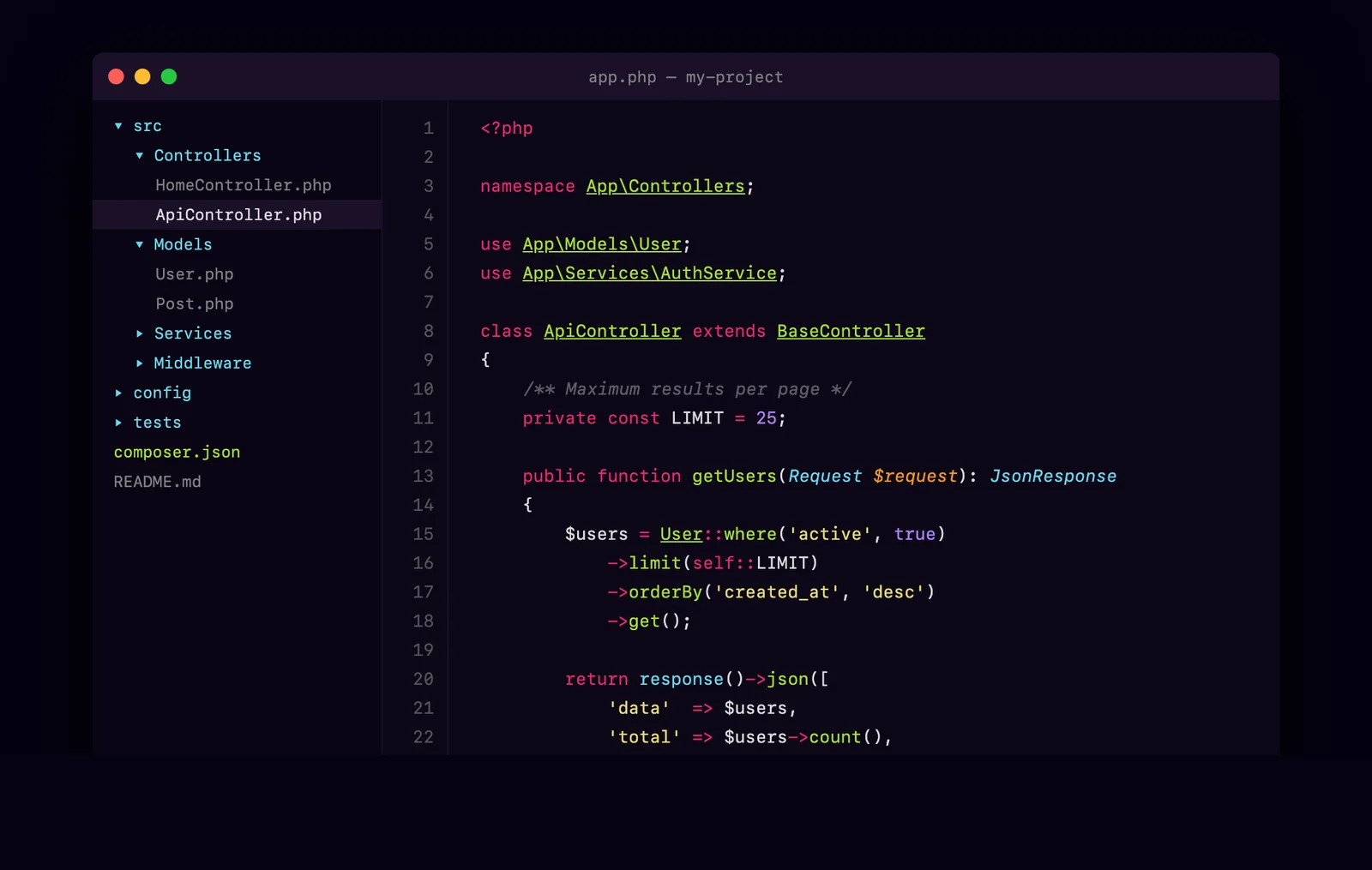
Two variants: dark and light
| Variant | Background | Best for |
|---|---|---|
| Spartan | #0d0717 |
Low light and night coding |
| Spartan Light | #fafafa |
Bright rooms and daylight |
Both variants ship in the same package, so you can switch between them from the menu without installing anything else.
The dark purple color scheme, color by color
| Role | Dark | Light |
|---|---|---|
| Background | #0d0717 |
#fafafa |
| Foreground | #ffffffd9 |
#2d2d2d |
| Comments | #dddddd65 |
#6e6e6e |
| Strings | #e6db74 |
#8a7020 |
| Keywords | #f92672 |
#c4166a |
| Functions and classes | #a6e22e |
#487000 |
| Types and library | #66d9ef |
#14707e |
| Numbers and constants | #ae81ff |
#7040c0 |
| Parameters | #fd971f |
#a85a00 |
| Caret | #ffd800 |
n/a |
Install it
- Open the Command Palette in Sublime Text:
Cmd+Shift+Pon a Mac,Ctrl+Shift+Pon Windows and Linux. - Choose Package Control: Install Package.
- Search for Spartan Color Scheme and press Enter.
- Turn it on under Preferences > Color Scheme. Pick Spartan for dark or Spartan Light for light.
Manual install
Download the scheme files from GitHub and place them in Packages/User/. You can open that folder from Preferences > Browse Packages. Then pick the scheme under Preferences > Color Scheme.
Older Sublime Text builds
Builds before 3149 cannot read the newer scheme format. For those, the package includes .tmTheme files. Add this line to your settings:
"color_scheme": "Packages/Spartan Color Scheme/Spartan.tmTheme"Works with the plugins you already use
Spartan has dedicated colors for three popular Sublime Text plugins:
- GitGutter: colored gutter marks for inserted, deleted and changed lines.
- BracketHighlighter: a color per bracket type: curly, round, square, angle, tag and quote.
- SublimeLinter (version 4 and later): separate colors for error, warning and info marks.
Supported languages
The scheme covers PHP, JavaScript, TypeScript, HTML, CSS, LESS, Sass and SCSS, JSON, YAML, Markdown, SQL, Python, Shell and Bash, CoffeeScript, Makefile, Twig and Handlebars. It also colors any other language that uses standard TextMate scopes, which is nearly all of them.
Spartan or Mercurial?
I maintain two color schemes among the many Sublime Text themes on Package Control. Spartan is the vivid one, built for people who like Monokai but want a darker, purple background. Mercurial is the quiet one, with a neutral gray background and muted accents taken from Warp Terminal. Pick Spartan if you want strong contrast between keywords, strings and functions.
Common questions
Does Spartan work in Sublime Text 3 and Sublime Text 4?
Yes. It supports both. Recent builds use the modern scheme files, and builds before 3149 use the included .tmTheme files.
Is Spartan a color scheme or a theme?
It is a color scheme. In Sublime Text, a color scheme sets the colors of your code and the editing area. A theme changes the tabs, sidebar and other parts of the interface. Spartan leaves your theme alone, so it works with whichever one you use.
Does it include a light version?
Yes. Spartan Light uses a #fafafa background and darker versions of the same accent colors, so the two variants feel related.
How is Spartan different from Monokai?
The accent colors will feel familiar. The background is the difference: Spartan uses a purple-black #0d0717, which is darker than Monokai’s gray-green. Comments are a translucent gray, so they fade back behind the code.
Is it free?
Yes. It is open source under the MIT license.
Related
See the rest of my open source contributions.